
Account Assignment
Introduction
With the Account Assignment module for PepperShop and PepperShop POS, you can assign a booking account to the items managed in the system. This ensures clear assignment for exports, such as the POS daily closing export, creating a simple process for accounting.
Definition of Account Assignment
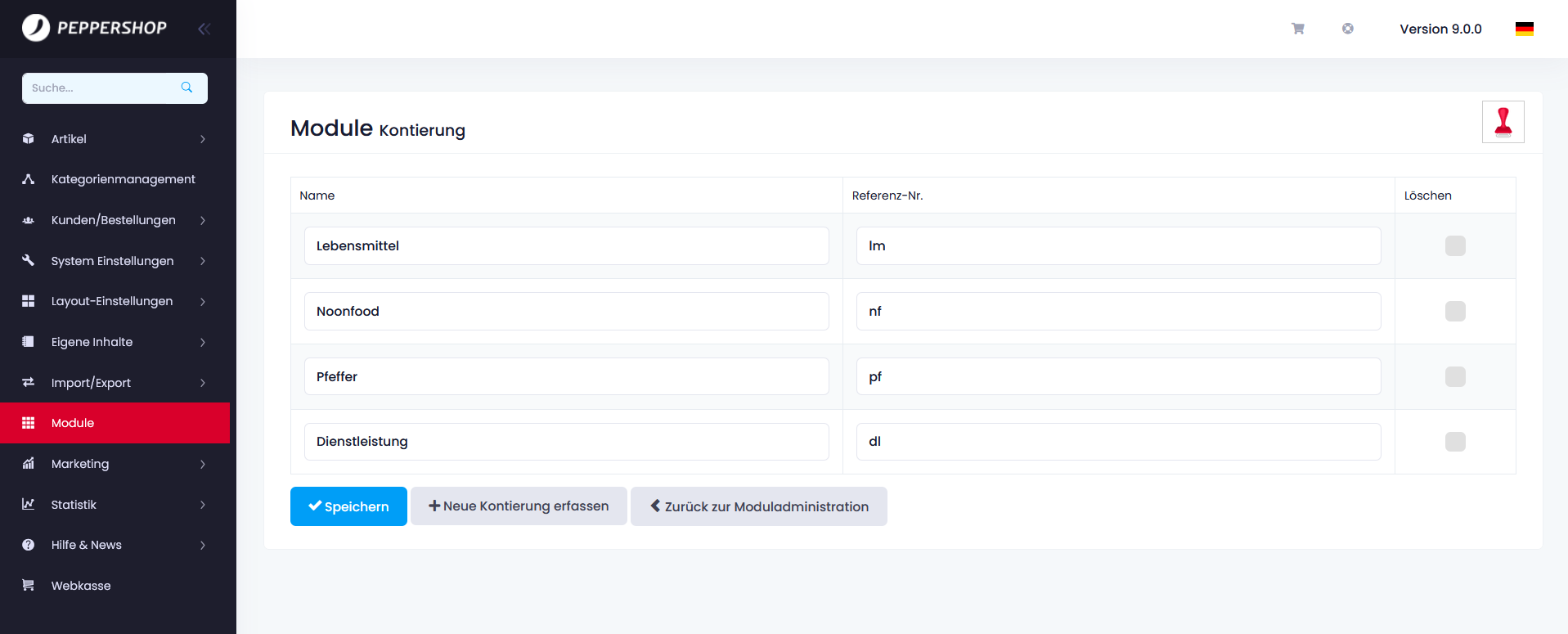
The interface can be accessed in the administration via Modules Account Assignment after the module has been installed (see the corresponding chapter below). The operation of the account management is very intuitive and offers a simple interface for administration.
Assigning an Account to an Item
There are several methods for performing account assignment:
- Individual item editing
- Bulk item mutation
- Import of account data via Business Connector / Caller
Individual Item Editing
In the administration, navigate via Items → Edit Items (or New Item) to the item editing mask. If the Account Assignment module is active, the account selection is now available there:
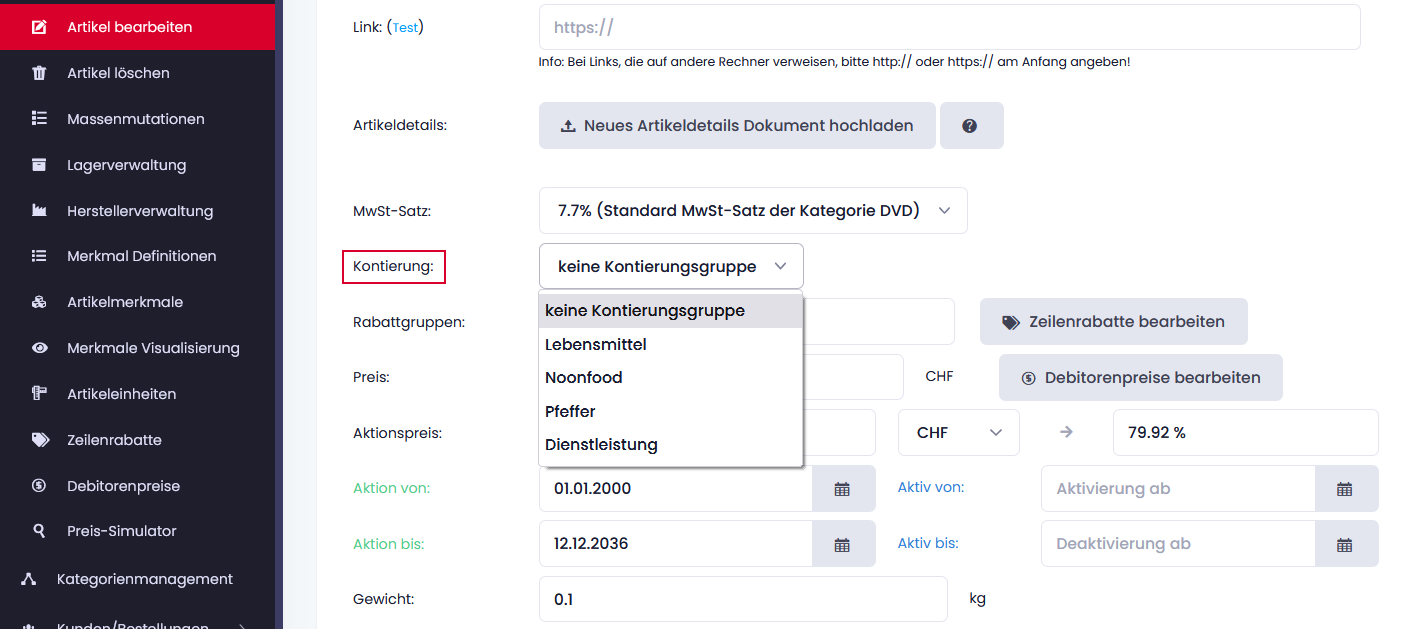
Import of Account Data via Business Connector / Caller
If you are using the Connect version of PepperShop, you can include the reference information in the account reference field during item import (see set_artikel[_inkrementell]).
There is also an import option for the accounts themselves.
Bulk Item Mutations
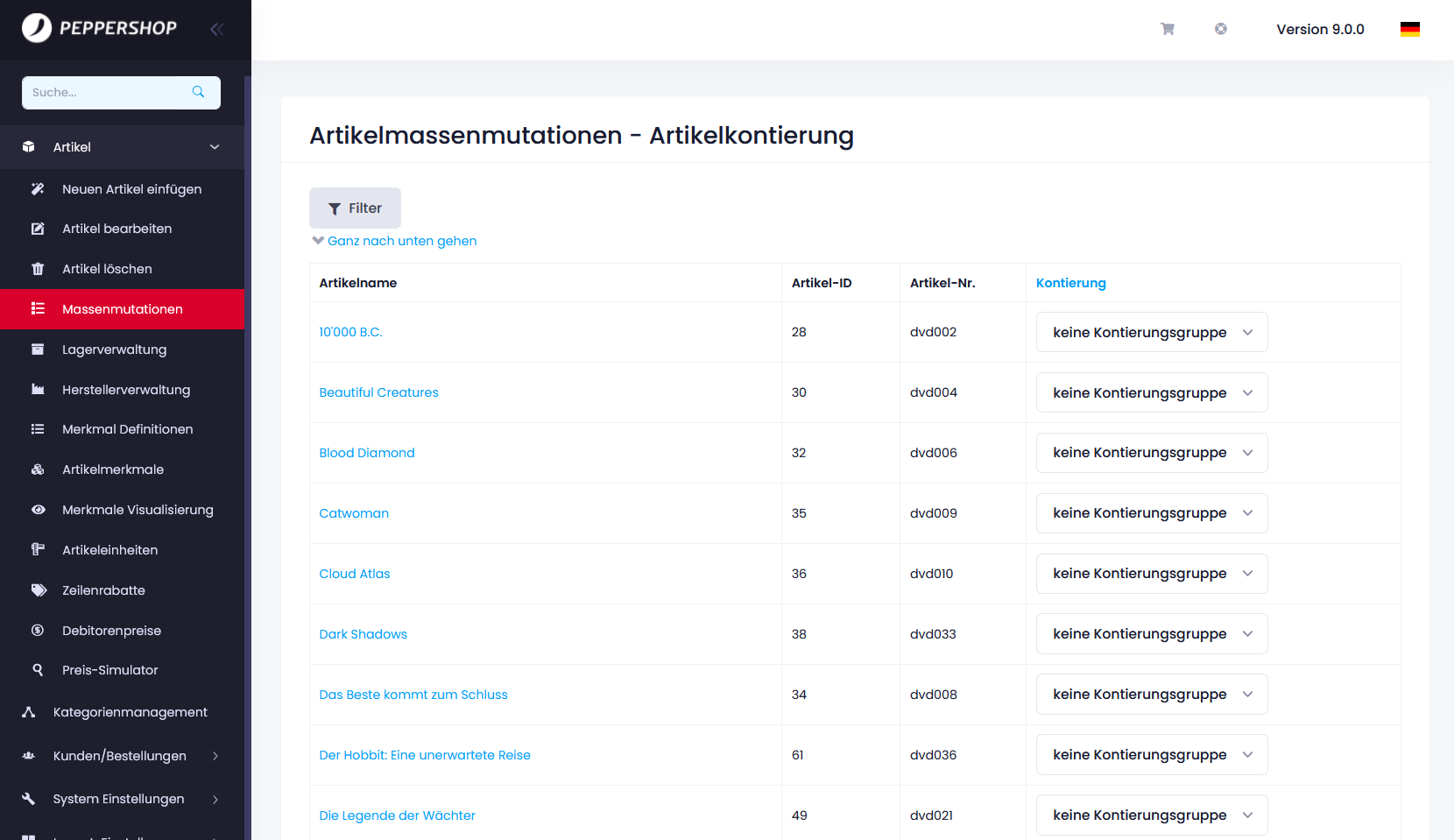
Multiple items can be edited simultaneously via Items – Bulk Mutations – Item Account Assignment:
Further Help
Do you have questions or need assistance? Do you have special requirements or desire a custom solution for your system? Our support team is happy to help. Support services are charged based on time and material at CHF 195.- / hour. Here is how to reach us:
Email: support@glarotech.ch Phone: +41 (0)71 923 08 58 Business Hours: Monday – Friday I 08:00 – 12:00 I 13:30 – 17:00
Other Useful Pages
- FAQ (Frequently Asked Questions)
- Modules & Functions
- Interfaces