
Wallee E-Commerce
Introduction
Wallee AG is an extremely popular payment service provider. A wide range of electronic payment methods and credit cards can be integrated into PepperShop quickly, easily and reliably.
If you are interested, please contact Glarotech GmbH. We will then be happy to send you the contracts. After you have signed them and the contracts have been reviewed, we will set up access to the “wallee” backend and then send you the access data.
You can order additional acquiring contracts such as TWINT and PostFinance directly from the providers. https://www.twint.ch/en/acquirer/twint-acquiring-ag/?lang=en https://www.postfinance.ch/en/business/products/payment-collection/online-shop.html
Module configuration
Installing the module
The module can be selected and installed via the following path: “Shop Administration” → “Modules” → “Module administration” → “Wallee”.
The module can then be activated. The remaining data required to complete the form can be found in the wallee AG backend.
This involves the following data:
| Function | Description |
|---|---|
| SpaceID |
The SpaceID is used to link your shop to the correct wallee area. This tells the module in which wallee account or Space payments should be processed. Without the correct SpaceID, no unique assignment between PepperShop and your wallee environment is possible. |
| UserID | The UserID identifies the application user in wallee through which the module connects to the wallee interface. |
| Secret | The Secret serves as the authentication key for the secure connection between PepperShop and wallee. |
Backend wallee AG
Log in to the wallee AG backend after you have received the access data.
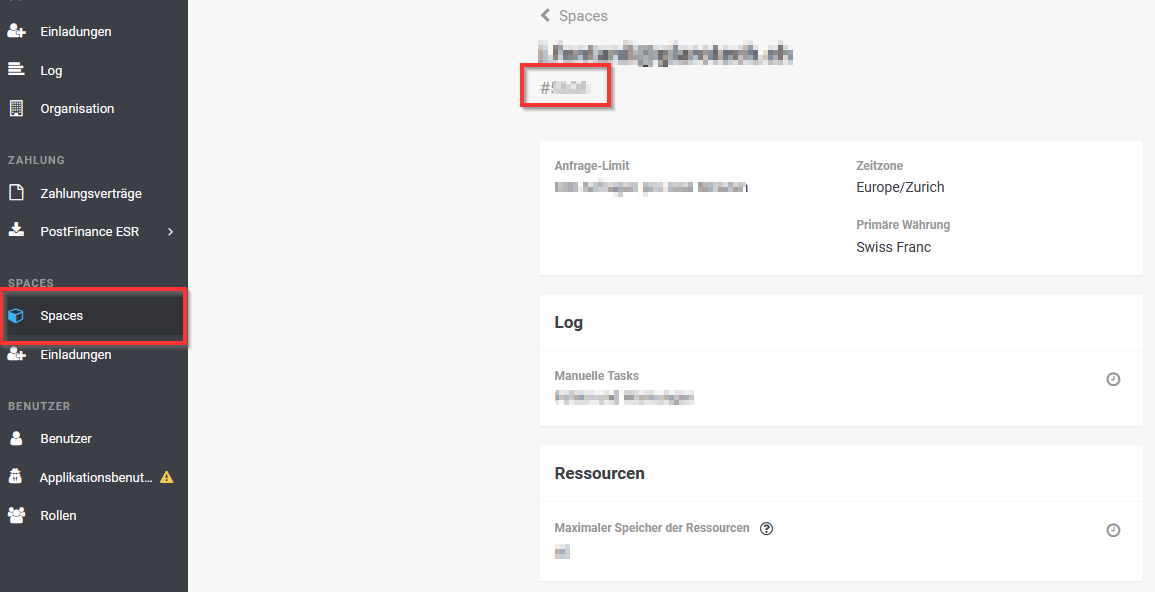
You can find the SpaceID under “Space” → “View Space (click on the name)". Transfer the SpaceID to the PepperShop module configuration. The “#” prefix of the SpaceID does not need to be transferred.
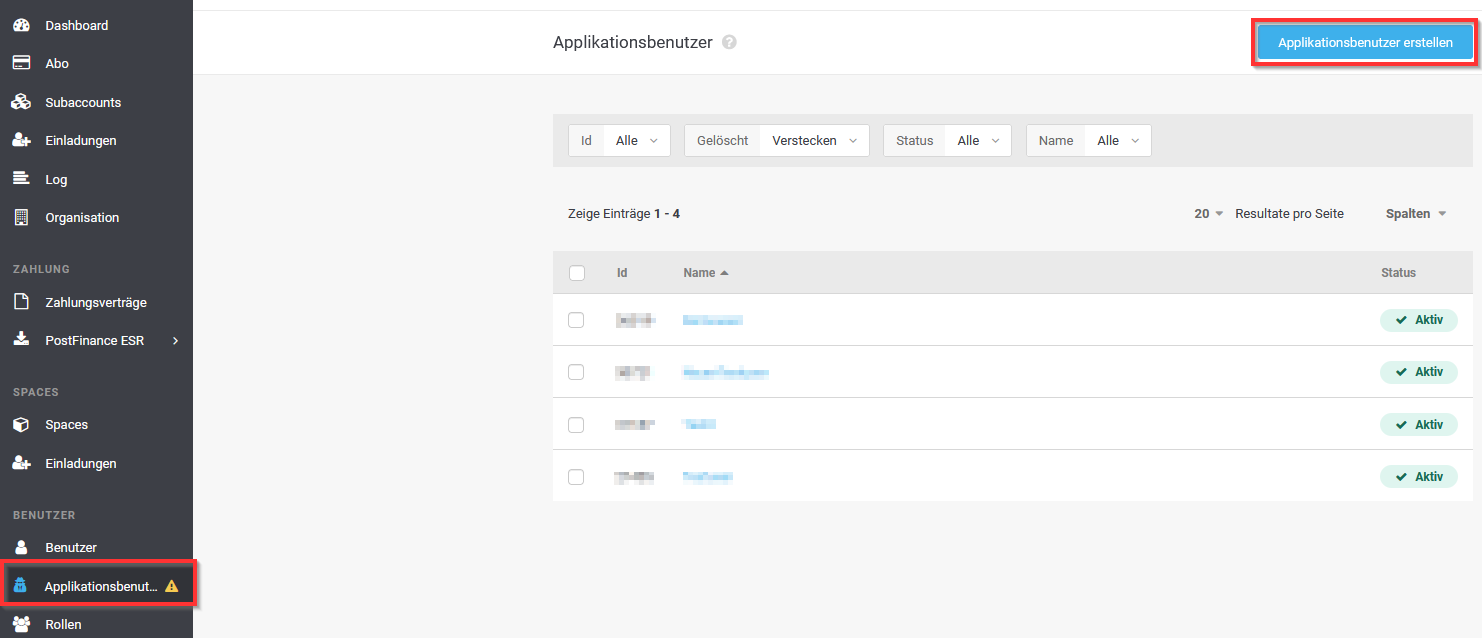
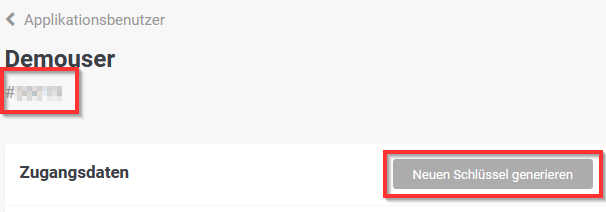
For the UserID and the Secret, you need to create a user in the “wallee” backend under “Application developer” → “Application user”. You can use PepperShop as the name, for example. After creation, you will receive the access details. You can enter the user ID in the module configuration under UserID and the Authentication Key under Secret.
Finally, you still need to assign roles to the application user. Click on the “Assign roles” notification window or on “Roles” on the left. You can now click the plus sign for “Account Roles”, “Subaccount Roles” and “Space Roles” and assign the role. The fields are filled in automatically. You can then save the roles.
Activating payment methods in PepperShop
In the “Shop Administration” of PepperShop, go to “Settings” → “General settings” → “Payment methods”. Now activate the electronic payment methods / credit cards.
You can activate the desired payment methods and select “wallee” in the “Handling”.
Then save the page and go to “Settings” → “Delivery countries / Shipping”. Edit the desired delivery country here and tick the boxes for the credit card payment method.
Now go under “Modules” to the “Wallee” module. Link the payment methods with the correct “processor” of your “wallee” and save the settings.
The payment methods will now be displayed in your shop.
Contacting wallee
If you have questions about your “wallee” backend, please contact wallee AG directly.
Phone: +41 (0) 44 505 13 60 / +49 40 2999 60117.
Further Help
Do you have questions or need assistance? Do you have special requirements or desire a custom solution for your system? Our support team is happy to help. Support services are charged based on time and material at CHF 195.- / hour. Here is how to reach us:
- Email: support@glarotech.ch
- Phone: +41 (0)71 923 08 58
- Opening Hours: Monday – Friday I 8:00 a.m. – 12:00 p.m. I 1:30 p.m. – 5:00 p.m.
Other Useful Pages
- FAQ (Frequently Asked Questions)
- Modules & Functions
- Interfaces