
YellowCube

Introduction
With YellowCube, Post CH AG provides a comprehensive logistics solution for distance selling that is designed to take over your complete warehouse management.
You order the goods from your supplier, and Swiss Post receives and stores them for you. As soon as an order in PepperShop is ready for delivery, it is automatically transmitted to YellowCube and processed. Intelligent warehouse management makes it possible for your goods to be on their way to your customers on the same day if stock is available.
Through many additional services, you can also ship goods in gift packaging and with inserts. For example, you can have flyers enclosed, or choose whether the delivery note and/or the invoice should be generated by PepperShop and transmitted to YellowCube. These are then printed there and enclosed with the shipment.
Returns are also processed without any action on your part. The goods are checked by staff and, after a successful quality check, sorted back into stock so that they are available for the next shipment.

Technical system requirements
- At least PepperShop v.5.0 Standard or Connect from Build 32 must be installed. Operation with version 5.0 from Build 44 is recommended.
- The PHP extensions SOAP, cURL and OpenSSL must be active and correctly configured.
- Your firewall settings must allow outgoing connections for this web server.
Configuration
Activate warehouse management
To use the full range of functions, warehouse management must be activated.
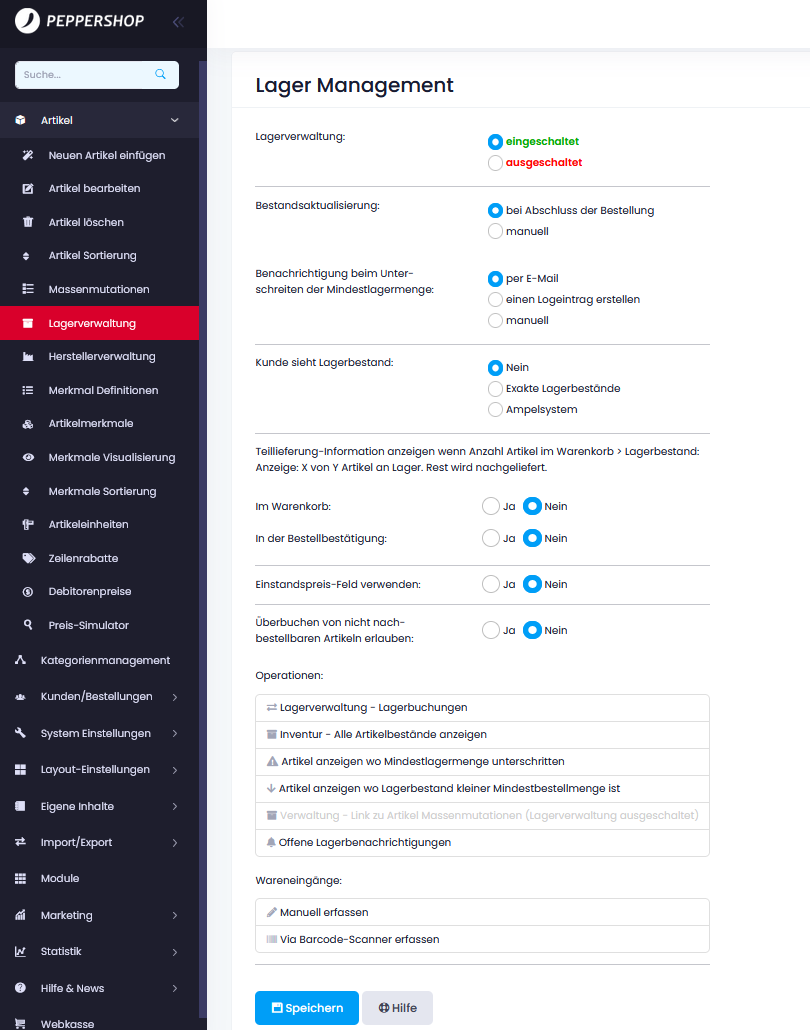
This gives you various settings to control the shop’s behaviour at different stock levels. For example, you can be informed about low stock levels, prevent articles from being ordered when no stock is available, or activate the stock display for customers.
Activate PDF printing
By activating the PDF printing module, you can have the delivery note and/or the invoice generated automatically by PepperShop. When the order is transmitted to YellowCube, these are then transferred, printed by Swiss Post and enclosed with the goods shipment.
To do this, install the “PDF Printing” module and then activate it in the module configuration.
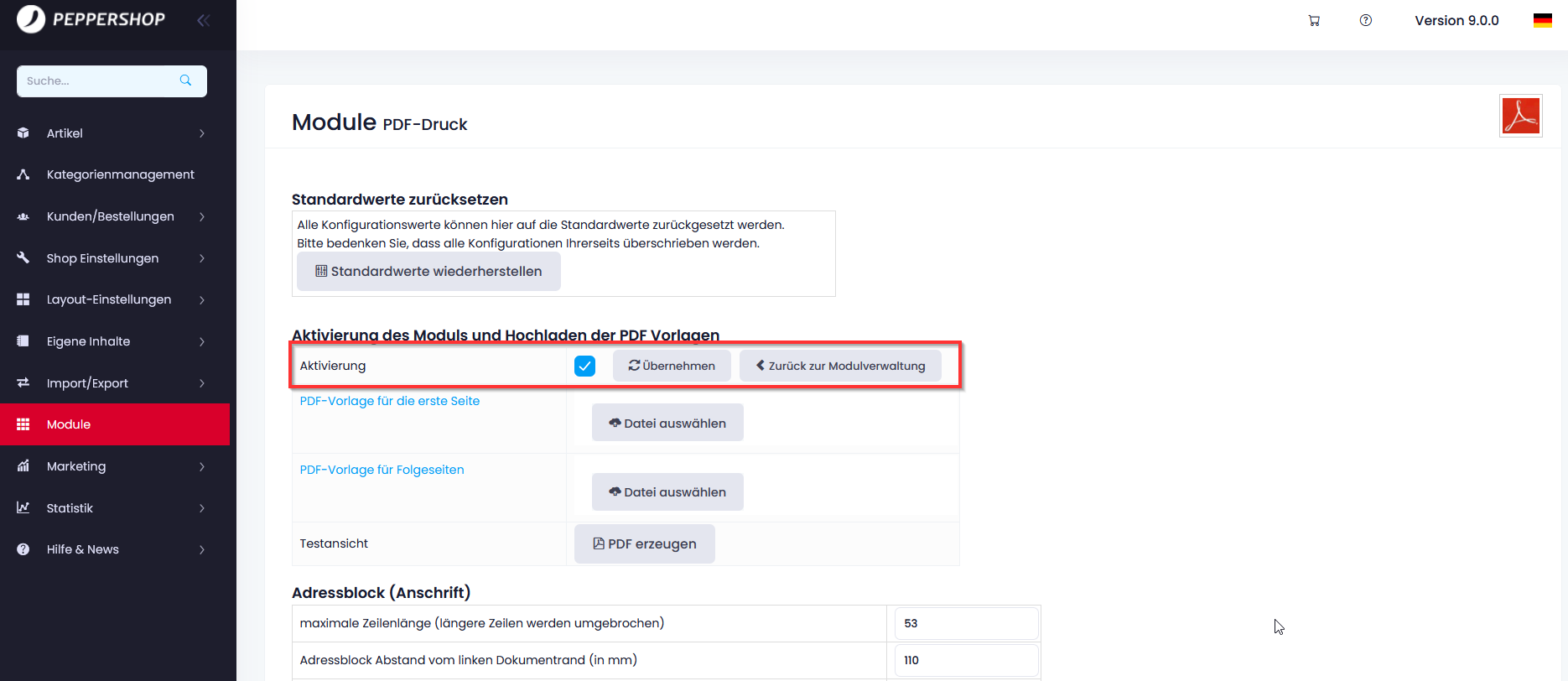
Using the many settings in the PDF module, you can configure the appearance of your PDF documents as desired and align them with your corporate design.
Once you have activated this module, further configuration options are available in the YellowCube module, through which you can set which of the two documents should be printed and enclosed by YellowCube.
For detailed information on the PDF printing module, please see the PDF printing module documentation.
Letter parcel shipping
If you ship articles that can be sent as letter parcels, the PDF printing module is mandatory. The dimensions of the articles contained in the order are evaluated. If all articles fit in a letter, a cover sheet with the delivery address is generated. This is then printed at YellowCube and used as a cover sheet for a window cover.
You can place a PDF file Address-Cover-Sheet.pdf in the module’s content folder, which is then used as the background for the cover sheet.
Activate YellowCube
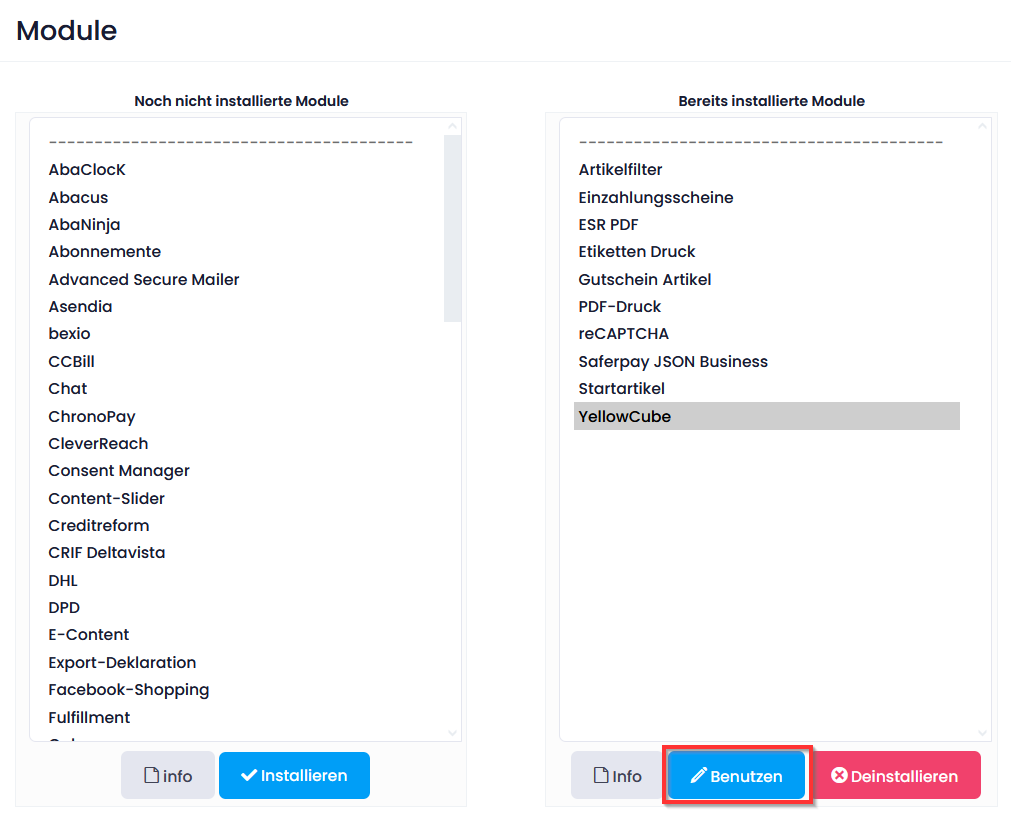
For Post CH AG to receive your orders from PepperShop via YellowCube, you need the YellowCube module. The configuration data will be sent to you by Post CH AG after successful registration.
First install the module via module installation and open the settings via “Use”.
In the configuration screen, all data required for communication with YellowCube that you have received from Post CH AG must now be entered.
Basic settings
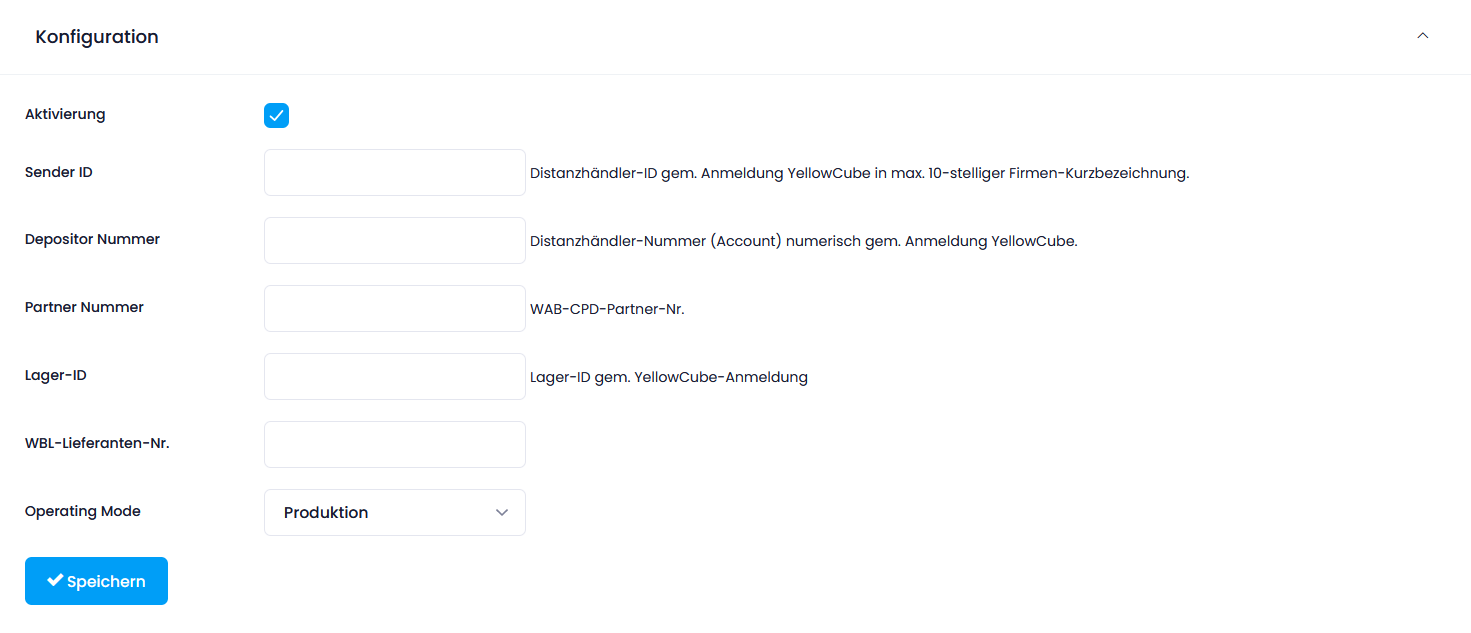
- Activation: Switch the module on and off without losing the configuration.
- Sender ID: Distance seller ID
- Depositor number: Distance seller number (account)
- Partner number: WAB-CPD partner number
- Warehouse ID: YellowCube warehouse ID
- WBL supplier no.: Your supplier number for goods deliveries to YellowCube (the supplier number is currently not actively used). Assigned by Post CH AG.
- Operating Mode Production: Mode for ongoing operation with YellowCube
- Test: For the setup and test phase for new shops
Certificate
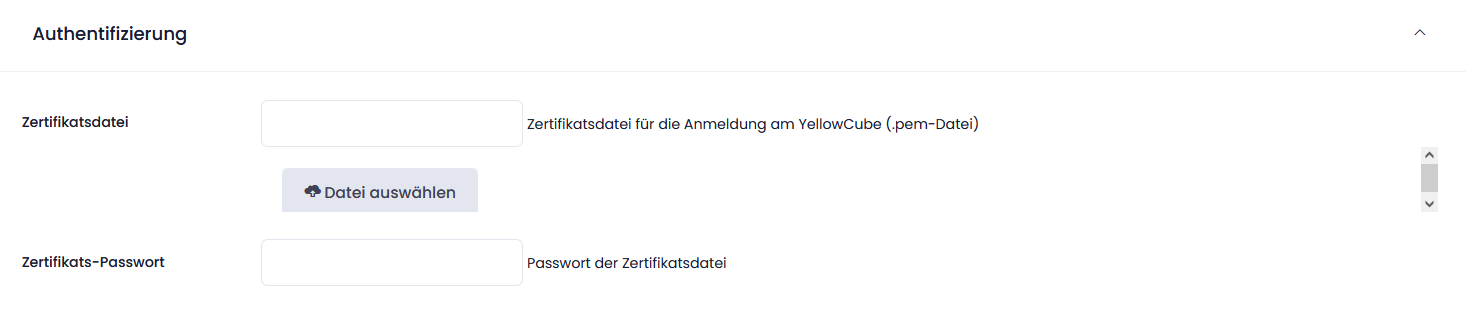
- Certificate file: For secure login to YellowCube, you will be provided with a certificate as a file. You must upload this
.pemfile here so that communication can take place and only your PepperShop can trigger orders. - Certificate password: The matching password that you received with your certificate file.
Order inserts

Via order inserts you can control which documents are printed by Post CH AG and enclosed with the goods shipment. These options are only available if the PDF printing module is installed.
If one of the options is activated, the automatically generated PDF file is also transferred when the order is transmitted to YellowCube. It is then printed there and enclosed with the parcel.
QR invoices
If you have activated invoice shipping, you can additionally use the payment slip module to generate QR invoices. These are then automatically sent to YellowCube together with the invoice and printed there. The payment slip module is a separately available module that has been available since PepperShop version 9.0.
Cash on delivery payments

If you offer cash on delivery payments in your shop, you can define the account number here that receives the incoming payments from cash on delivery shipments. This is transmitted with every order with payment method “Cash on delivery” and can be changed at any time.
Set up cron job
The main functionality of the YellowCube module is provided by the cron script. For this to be executed on Unix-based systems, the permissions of the file to be executed must be set accordingly.
chmod o+x cli_yellowcube_sync.php in the module directory should set the required permissions.The cron script is executed in two modes, which are defined by the specified action option.
The productSync action synchronises the product master data between YellowCube and PepperShop. This action should be run once a day.
The checkForOrder action should be run every 5 minutes and checks whether there are orders that should be transmitted to YellowCube. Current status changes from YellowCube are also queried and the corresponding functions in the shop are executed. For example, if a parcel has been shipped, the tracking code is imported and an email with a link to Post tracking is sent to the customer. The status in the shop is also changed to “shipped”.
Recommended cron job settings:
0 1 * * * {Shop-Root}shop/Admin/module/yellowcube/cli_yellowcube_sync.php -action=productSync

*/5 * * * * {Shop-Root}shop/Admin/module/yellowcube/cli_yellowcube_sync.php -action=checkForOrder
{Shop-Root} must be replaced with the path in which your shop is installed.
You can find this path in the shop administration under:
“Shop settings” → “Shop configuration” → “Configuration” → “Path info:" → “Shop root:"
Product properties / feature management
So that the module can recognise which products should be managed via YellowCube, the product property “YellowCube” is set. To do this, edit the article and add the feature “External shipper”.
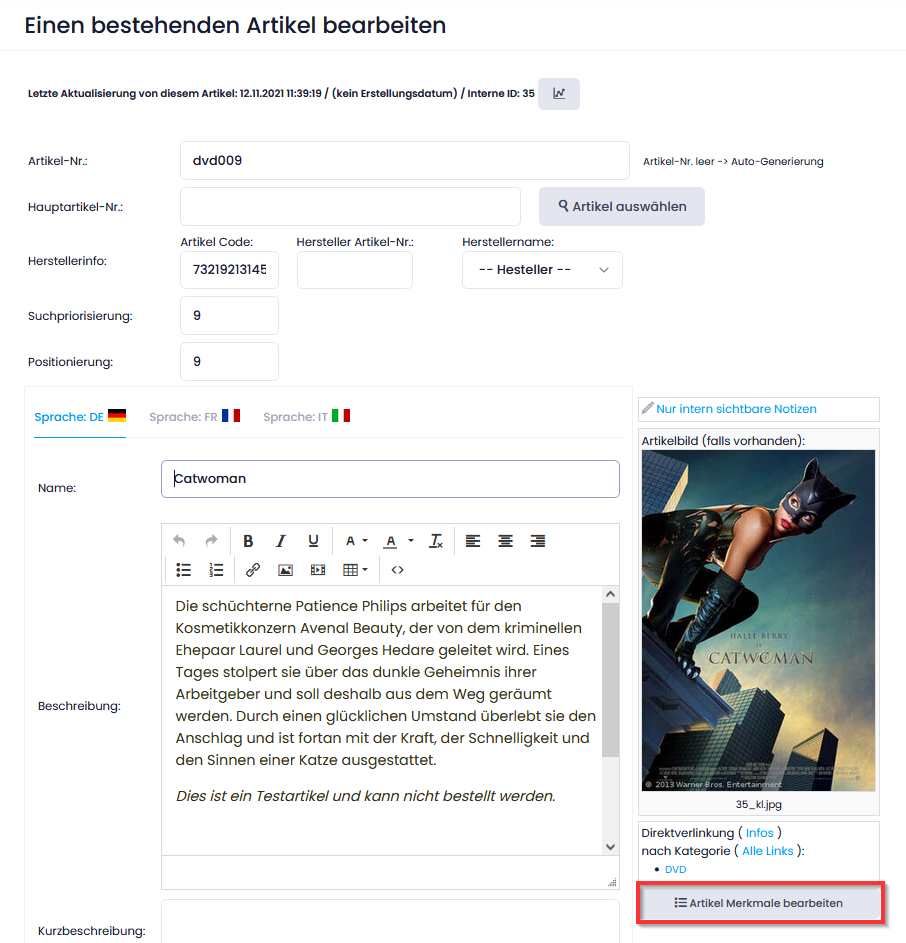
Here you only need to fill the field External shipper: with “YellowCube”. The field YC reference: is automatically filled with a reference number as soon as the cron job has synchronised the product with YellowCube.
For better management in YellowCube, you can also enter the dimensions (width × height × length) of an article here. Entry is in millimetres. If you have articles for letter parcel shipping in stock, entering the dimensions is mandatory for recognition.
Assign “YellowCube” property automatically
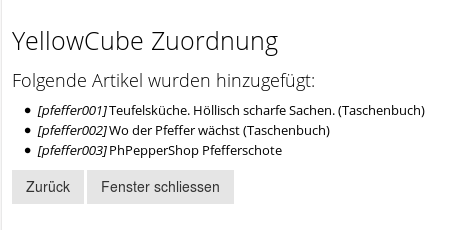
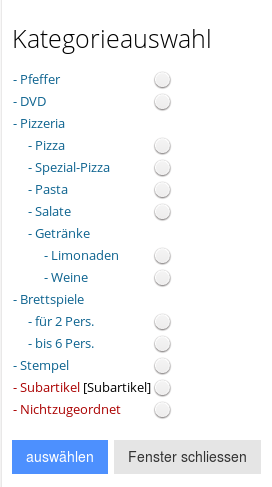
In the module settings you can assign the YellowCube property by category. To do this, select a category in the “Category selection” popup, and all products contained in it are automatically equipped with the article feature “External shipper” → “YellowCube”.

Operation
Preparation phase
- As soon as you have fully set up the module, the shop products must first be transmitted to YellowCube as an XML file or via the cron job
productSync. For a large article master, data delivery via XML to YellowCube is recommended, as synchronisation via SOAP can quickly take several days. - After the product master has been built at YellowCube, a goods receipt must take place at YellowCube. This must first be registered with YellowCube with a WBL message via XML file. Further information on this is available from Post CH AG.
- After goods have been received, processed and stored at YellowCube, the stock level can be retrieved by the shop. From this point, the shop can begin processing the data, and the stock level is visible in the YellowCube module.
Stock management
When you have stored products in YellowCube and the cron job has synchronised the stock level, you will see the current stock level and deviations between YellowCube and PepperShop in the module.
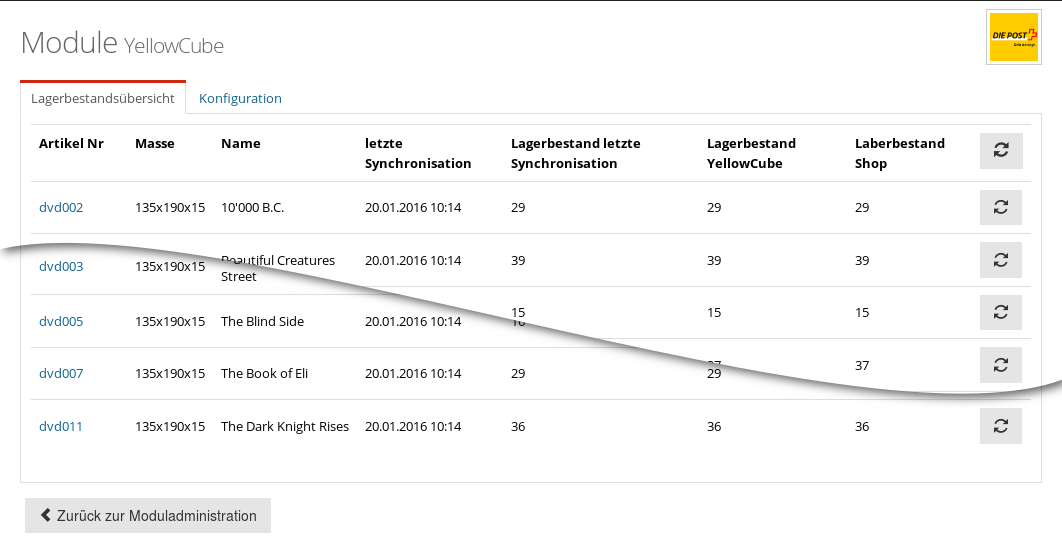
In stock management you can synchronise the YellowCube stock level into the shop. You should only do this when you have new putaways and returns in YellowCube, because the shop stock level is reduced when the order is placed (if this is set under stock management). The “YellowCube stock level” is reduced after the order has been transmitted to YellowCube. The “Stock level last synchronisation” changes after the cron job has retrieved the inventory from YellowCube.
To synchronise the stock level, you can synchronise individual articles only or the entire article master. To synchronise the entire article master, press the synchronise button in the table header; for individual articles, press the button in the respective row.
Stock discrepancy
If the cron job for article synchronisation does not find an article with stock in YellowCube in the shop, e.g. because it was deleted in the shop, it is displayed in the “Stock discrepancy” tab.
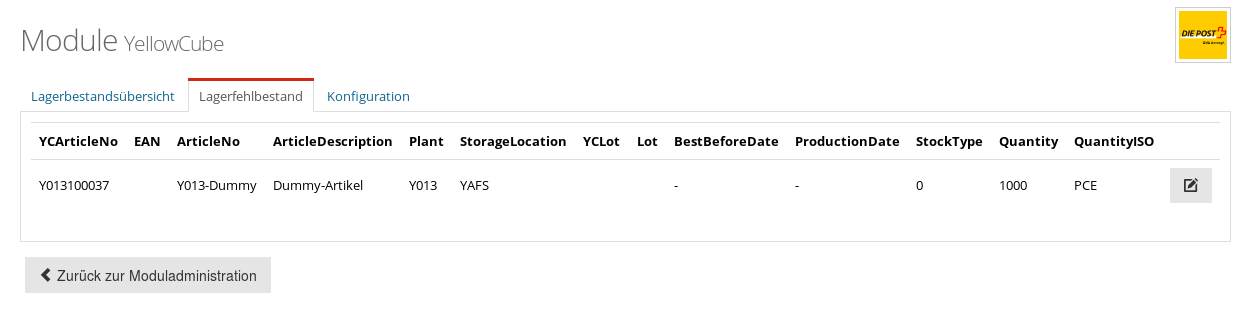
By clicking the edit button, you can take over and extend the existing data including stock level into PepperShop.
Order processing
When an order has been received that contains products managed via YellowCube, the cron job checks whether stock is available for all products. As soon as this is the case, the order is transmitted to YellowCube and the shop receives a reference number for this order. Using this reference number, the processing status is queried in a second step. If we receive a positive processing response, the order status is first changed from “received” to “in progress”.
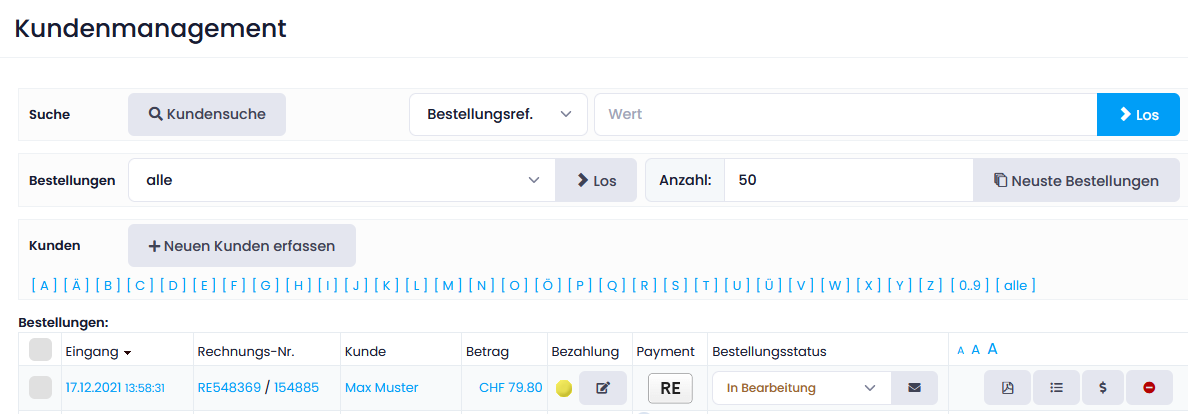
As soon as the order has been processed further, the shop receives a status update with a tracking number. If the tracking module is installed, the customer then receives an email with the tracking code and the information that their order has been shipped. Otherwise, the email is sent without a tracking code.
Error handling
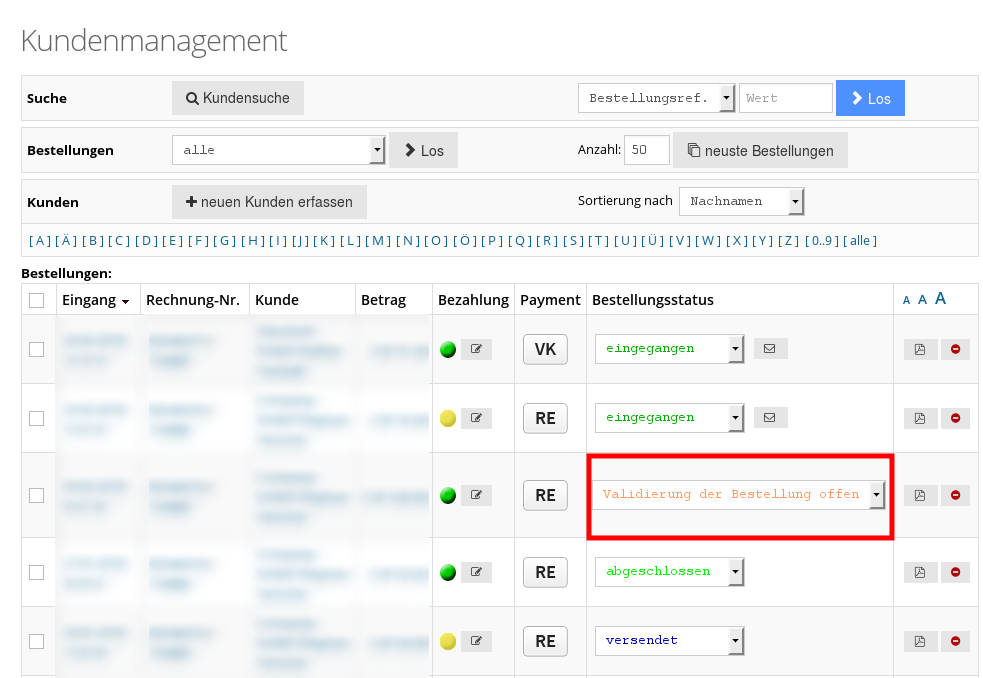
In some cases, an error response may be returned by YellowCube. To indicate this, the order status is set to “Order validation pending”.
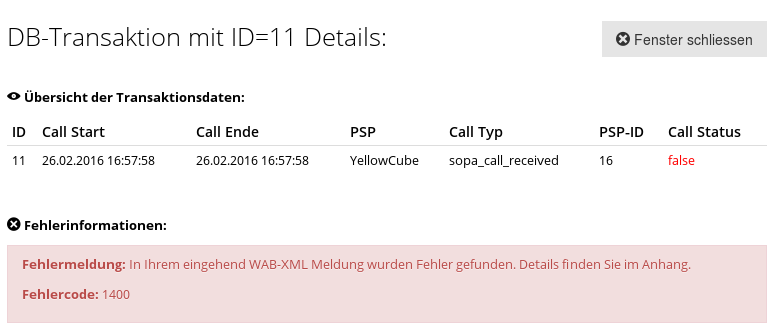
Since the status “Order validation pending” is also used for other services and errors, the reason for the error is only visible within the transaction log.
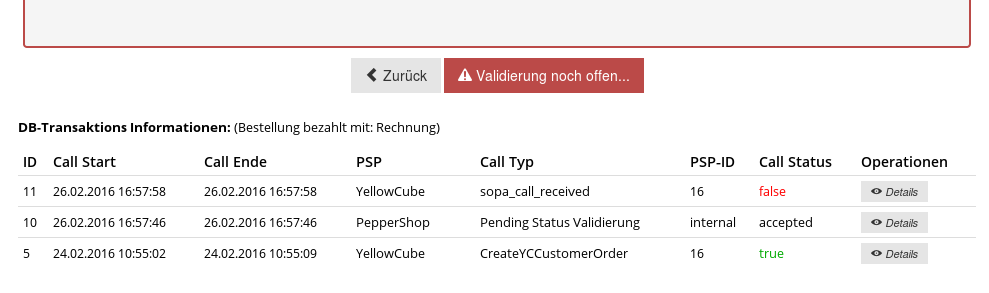
For some errors, the reason is sent directly in the YellowCube interface response and is visible here in the transaction log details. For other errors, the reason is delivered by email.
If the order should be sent to YellowCube again, click “Validation still pending…" and then “OK” in the order. This resets the order status and delivers the order to YellowCube again.
Best-before date
The PepperShop connection to YellowCube can handle best-before dates in the article master (MD). This functionality is required when YellowCube should use corresponding queuing so that the best-before dates of the respective articles are observed.
Payment slips
For PepperShop there is the payment slip module which, based on the PDF printing module, creates ESR-/BESR-compliant Swiss payment slips.
These payment slips can now be forwarded directly to YellowCube. Thanks to integrated tray control, the payment slips are printed in YellowCube directly onto corresponding A4 paper with pre-perforated payment slips and enclosed.
Troubleshooting and frequently asked questions
Cron jobs can no longer be started
If a cron job did not end cleanly after a serious error, it can happen that the next cron job can no longer be started either. To prevent simultaneous execution of multiple jobs, each cron job sets a LOCK status. The maximum lifetime of a lock status is 5 hours. After these 5 hours, the status is released automatically.
If it needs to be released manually, the “locks” table in the database must be edited. There, look for the row “YellowCube_cronjobs” and change the value “lock_status” from “locked” to “unlocked”. For safety, check whether the status is not immediately locked again. If necessary, release the status again.
Open questions?
First check the chapter Troubleshooting and frequently asked questions. Then ask yourself which partner (PepperShop or Swiss Post / PostLogistics) can best answer your question, and contact them.
- PepperShop: www.peppershop.com
- Post CH AG / YellowCube: www.post.ch
Contact Post CH AG
Post CH AG
YellowCube Customer Service
Roggenstrasse 5
4665 Oftringen
- Phone: +41 58 667 76 30
- Email: yellowcube.info@post.ch
Contact person: Franziska Dober
Further Help
Do you have questions or need assistance? Do you have special requirements or desire a custom solution for your system? Our support team is happy to help. Support services are charged based on time and material at CHF 195.- / hour. Here is how to reach us:
- Email: support@glarotech.ch
- Phone: +41 (0)71 923 08 58
- Opening Hours: Monday – Friday I 8:00 a.m. – 12:00 p.m. I 1:30 p.m. – 5:00 p.m.
Other Useful Pages
- FAQ (Frequently Asked Questions)
- Modules & Functions
- Interfaces